Crea ejercicios para tus cursos online con PDF Editables

Breaking Digital: el proyecto de formación personalizada de Orange
It is always advisable to accompany online courses with exercises that students can perform, since it allows them to consolidate the knowledge of that module, while the teacher can evaluate their progress and reinforce the content in if necessary.
Many times, we find statements of long and complex exercises in a PDF, but we cannot solve it in the same document, making the student have to copy it to a Word document, reconfiguring the original format, or print it and fill it in by hand to return to scan it. Small drawbacks, but that can affect the final user satisfaction.
Luckily there is a very simple solution to solve these problems: fillable PDFs. Create PDF with boxes that can be filled in directly from the PDF reader, makes the process much easier.
Next, we share with you two tools to create fillable PDFs, a paid one and its free alternative, to create your exercises, and we will teach you step by step how to upload it to your online course.
PDF Acrobat
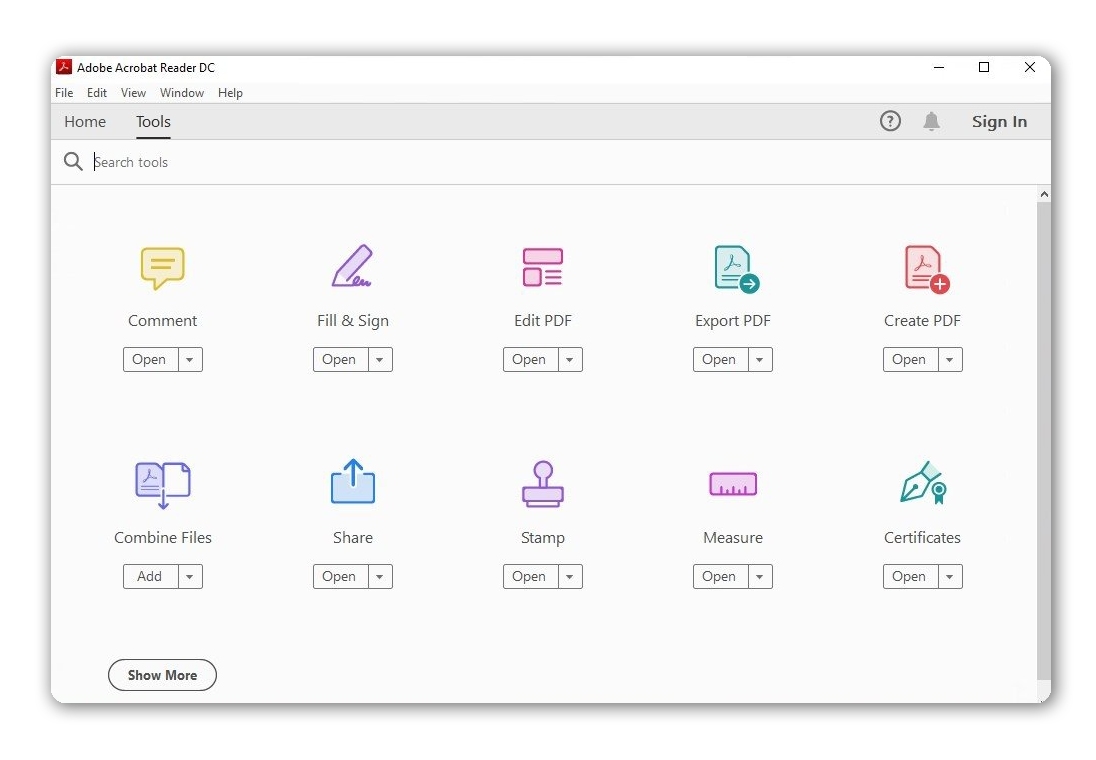
If you have Adobe Acrobat Standard or Pro (both paid), you can create fillable forms from PDF or Word documents. It even allows you to digitize paper documents, automatically detecting the fields and converting them into fillable forms.
It also offers the possibility of customizing these fields, moving them, resizing them or creating new ones. Its form options include:
- text fields
- electronic signatures
- calculations and data validation rules to your form
Once ready, you can save the PDF to share it with your students, and they can fill it in.
PDF escape
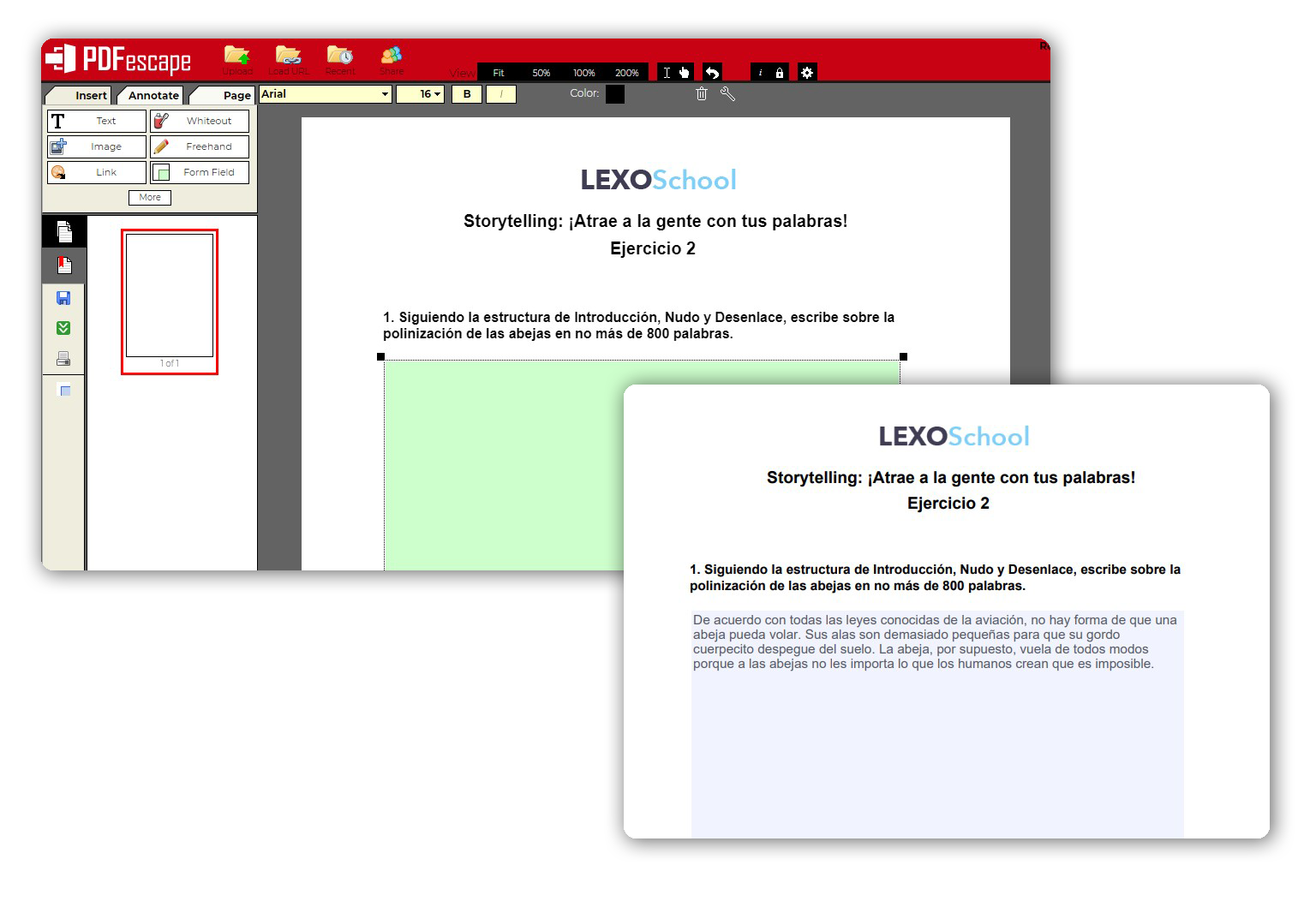
PDF Escape is a free online PDF editor, that is, you do not need to download any software (although it also offers an app and a paid plan).
It’s very simple and intuitive to use, as it has an interface very similar to other text editing tools.
It allows you to upload a PDF document already created or create one from scratch, as if it were a text editor.
You can insert text, images and form fields. The options offered are:
- Short and long text
- Checkbox
- Radio options (only option)
- Drop-down
- List of boxes
- Reset
- button Send button
How to upload your fillable PDF to your online course
1- Upload the fillable PDF to your course
In the Topics and Materials section of your online course we will first select the “Download” material.
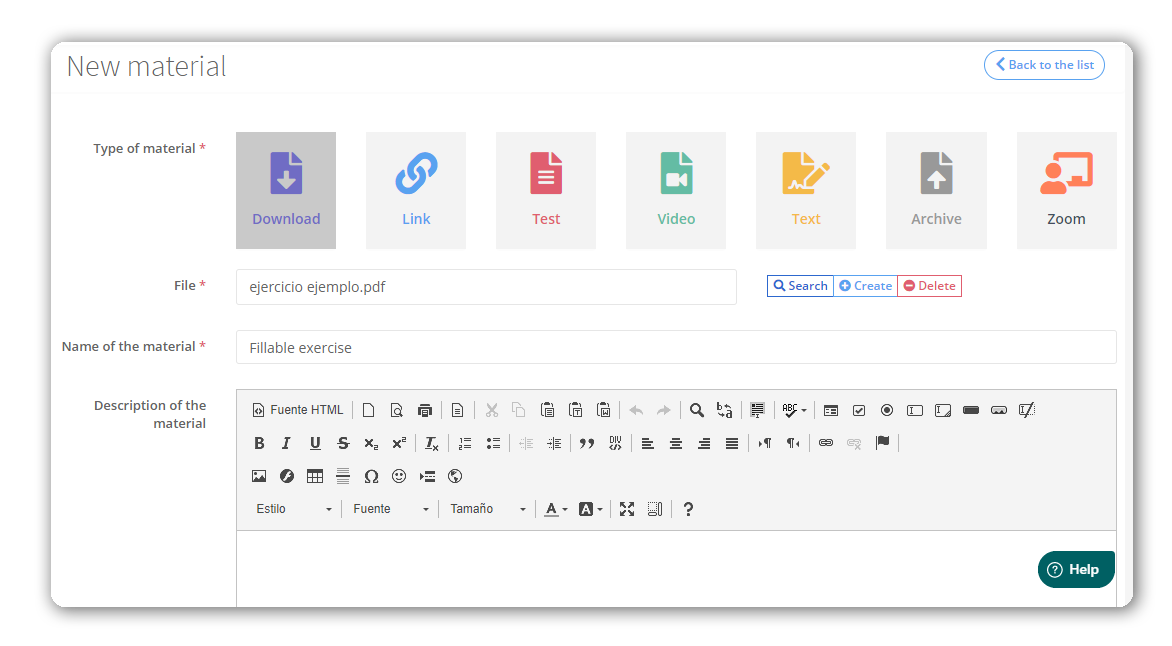
Upload the fillable PDF file, give it a name and add the instructions for the exercise, how they should fill it in and when and where they should deliver it.
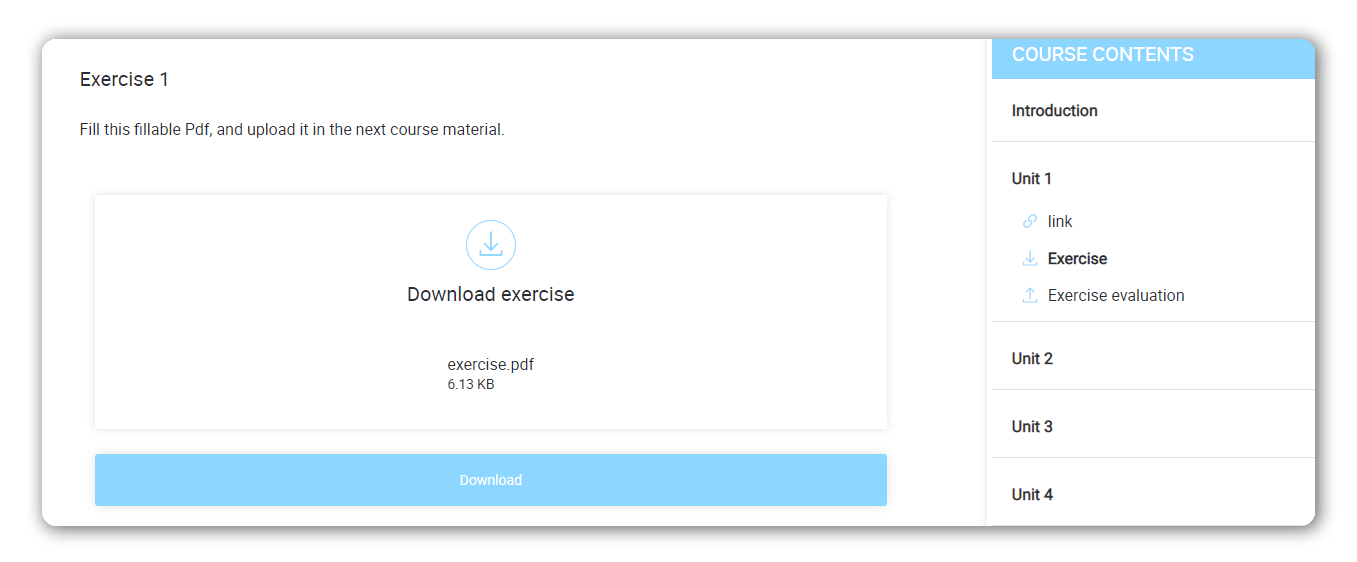
The students of the course will see the material like this:
2- Create a material for your students to upload the filled-in PDF
Next, we will create another material in the module. In this case, it will be the "File" type material. This will enable students a space so that they can upload their PDF file.
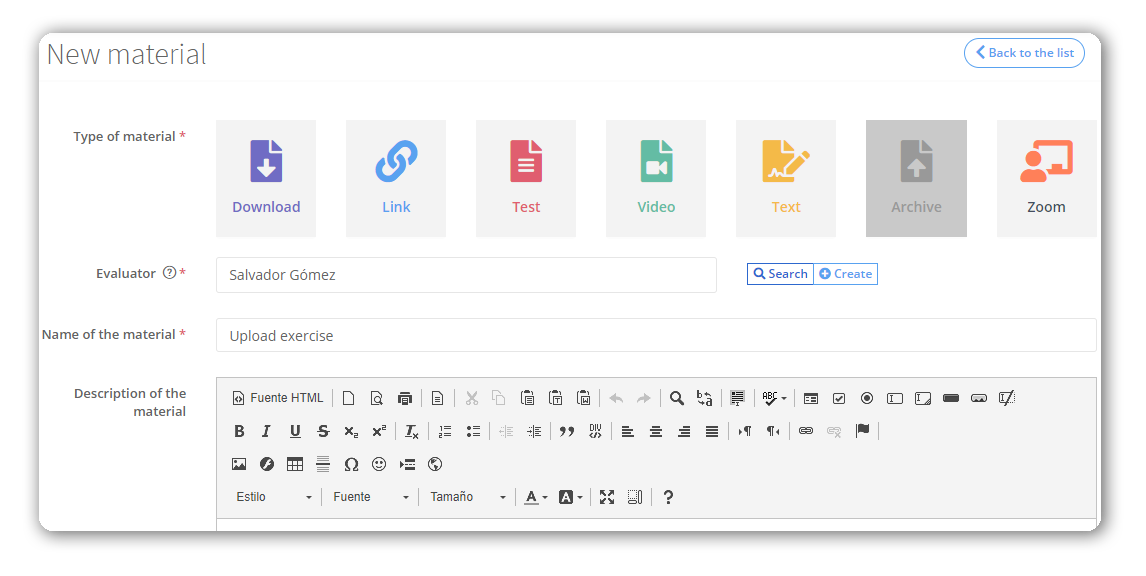
As in the previous material, give it a name and write the instructions on how to upload it. You can also indicate the time it will take to evaluate and that, once ready, they will receive an email.
This is how your students will see it:
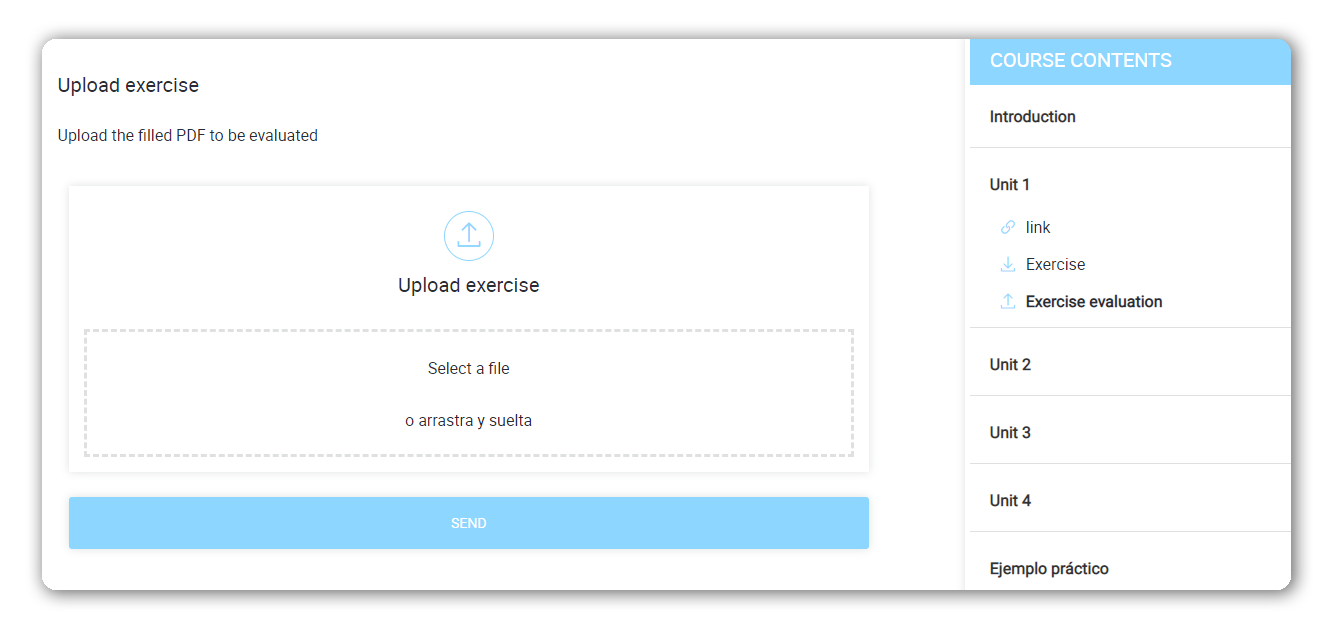
In addition, they can always see the status of their file.
When you create the material in the back office, you will also have to select an evaluator. The evaluator does not necessarily have to be the professor of the course, but he must have the role of professor on the platform.
The evaluator will receive an email to evaluate the exercises, which can be done from his account in "My evaluations".
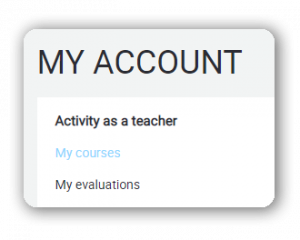
You will be able to see the courses you are in as an evaluator and access the student evaluation.
You can download the document, put a note and leave a comment.
Once evaluated, the student will receive an email notifying it. The student will be able to see the result of the evaluation in the course.
As administrator of the platform, you can also evaluate the exercises in the section "Evaluations" within the CRM of the course, in Daily Management> Courses.
If you still do not have your own training platform where you can upload and manage your online courses, face-to-face and webinars, at Foxize Cloud we offer you a 1-month free trial so that you can start taking your first steps in the world of training.